

What to Do If Your iPhone Storage Is Full
If you own an iPhone, you know how frustrating it can be when you run out of storage space. You can’t take more photos, download more apps, or update your software. You might even get a “Storage Almost Full” alert that warns you to free up some space.
But don’t worry, there are some easy ways to clear storage on your iPhone and make room for more important things. Here are four steps you can take to optimize your iPhone storage and avoid the dreaded “Storage Almost Full” alert.
Step 1. Check Your iPhone Storage Capacity
The first thing you need to do is check how much storage your iPhone has and how much of it is used. To do this, go to Settings, General, then [Device] Storage. You will see a bar graph that shows you how much space each category of content takes up, such as apps, photos, media, mail, messages, books, iCloud Drive, and other forms of content not specified.

You will also see a list of recommendations for optimizing your storage, such as offloading unused apps, deleting old conversations, or enabling iCloud Photos. You can tap on each recommendation to learn more about it and turn it on if you want.
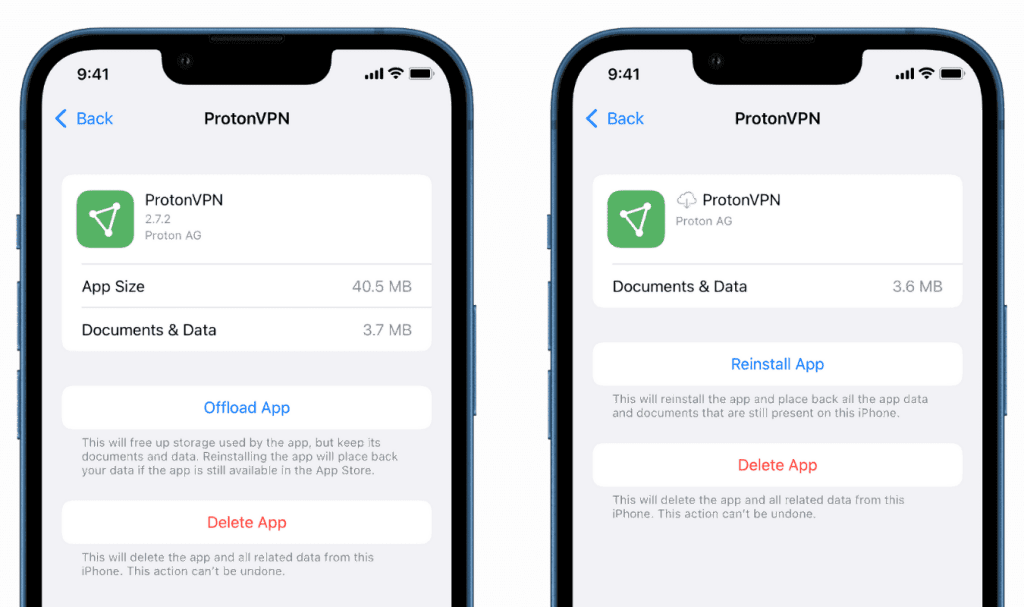
You can also tap on each app in the list to see how much space it uses and delete it or offload it if you don’t need it. Offloading an app means that the app itself is removed but its data and documents are kept on your device. You can reinstall the app later without losing any information.
Step 2. Clean Up Your Photo Library
One of the biggest culprits of taking up storage space on your iPhone is your photo library. Photos and videos can take up a lot of space, especially if you have high-resolution or 4K videos. To free up some space, you can do the following:
-
- Enable iCloud Photos – This feature lets you store your entire photo library in iCloud and access it from any device. It also optimizes your storage by keeping smaller versions of your photos and videos on your device and downloading the full-resolution versions when you need them. To turn on iCloud Photos, go to Settings > Photos and toggle on iCloud Photos.

- Delete unwanted photos and videos – Go through your photo library and delete any duplicates, blurry shots, screenshots, or other photos and videos that you don’t want to keep. To delete multiple items at once, tap Select in the upper-right corner of the Photos app and tap on the items you want to delete. Then tap the trash bin icon at the bottom-right corner and confirm. This, however, will mean you’ll have to…
- Empty the Recently Deleted album – When you delete photos and videos from your photo library, they are not permanently deleted right away; they are moved to the Recently Deleted album where they stay for 30 days before being erased. To free up space immediately, you can empty this album by opening it, tapping Select, tapping Delete All, and confirming.
Step 3. Clear Your Browser’s Cache
Another way to clear storage on your iPhone is to clear the cache of your web browser. If you’re wondering what a ‘cache’ is, it doesn’t involve money – a cache is a temporary storage area that saves data from websites you visit so that they load faster the next time you open them. However, over time, the cache can accumulate a lot of data that takes up space and slows down your browsing.
To clear the cache of Safari, the default web browser on your iPhone, follow these steps:
- Go to Settings, then select the Safari app.
- Scroll down and tap Clear History and Website Data.
- Tap Clear History and Data to confirm.

To clear the cache of any other web browsers you may use, such as Google Chrome or Mozilla Firefox, check their settings or help pages for instructions.
Step 4. Clear Your App’s Cache and Other App Data
Some apps on your iPhone may also store some temporary cache files or other data that can take up space. To give some examples, streaming apps like Spotify or Netflix may download songs or videos for offline playback, social media apps like Facebook or Instagram may save images or videos from your feed, and most gaming apps may save game data or progress.
To clear app cache and other app data, you can try these methods:
- Check the app settings – Some apps may have an option in their own settings to clear cache or delete downloaded content. For example, in Spotify, you can go to Settings > Storage > Delete Cache. In Netflix, you can go to Settings > App Settings > Delete All Downloads. Check the settings of each app you use and look for similar options.
- Offload or delete the app – If you don’t use an app frequently or at all, you can offload it or delete it to free up space. As mentioned earlier, offloading an app removes the app itself but keeps its data and documents. Deleting an app removes both the app and its data and documents. To offload or delete an app, go to Settings > General > [Device] Storage, tap on the app you wish to choose, and choose Offload App or Delete App.
What Else Can I Do?

If you’re frustrated by your iPhone’s limited storage space, but don’t want to lose any of your precious photos and videos, you can always come in to one of our available stores across East Anglia. For 2 decades, ArmaFone have specialised in not just phone, tablet and laptop repairs, but also in software support for those who are geeks to complete novices/technophobes!
If you’re in need of any assistance in managing your iPhone’s full storage, ask our friendly technicians in-store and we’ll help provide advice on how we can help, as well as suggest suitable methods for handling your iCloud storage, using external data storage methods and any accessories that suit your needs and budget.
We can also help out with your Android storage too, if you have a Samsung, Huawei, Motorola or Google Pixel – don’t hesitate to contact us!
